Purchasing and inventory management in Odoo
See what is in stock, how much is reserved for customers and when the next delivery is due. Plan purchases around demand and track what you ordered, what has arrived and what is still outstanding.
See how purchasing and inventory work together Discuss your warehouse operations
What can you do with Odoo Purchase and Inventory?
Buyers can see when to order and which supplier to use. Warehouse staff can see where to put stock, which orders it is reserved for and what to dispatch next.
Compare supplier quotations
Request quotes from several suppliers for the same item and compare prices and lead times.
Use supplier price lists
Save supplier prices, quantity discounts and lead times for future purchase orders.
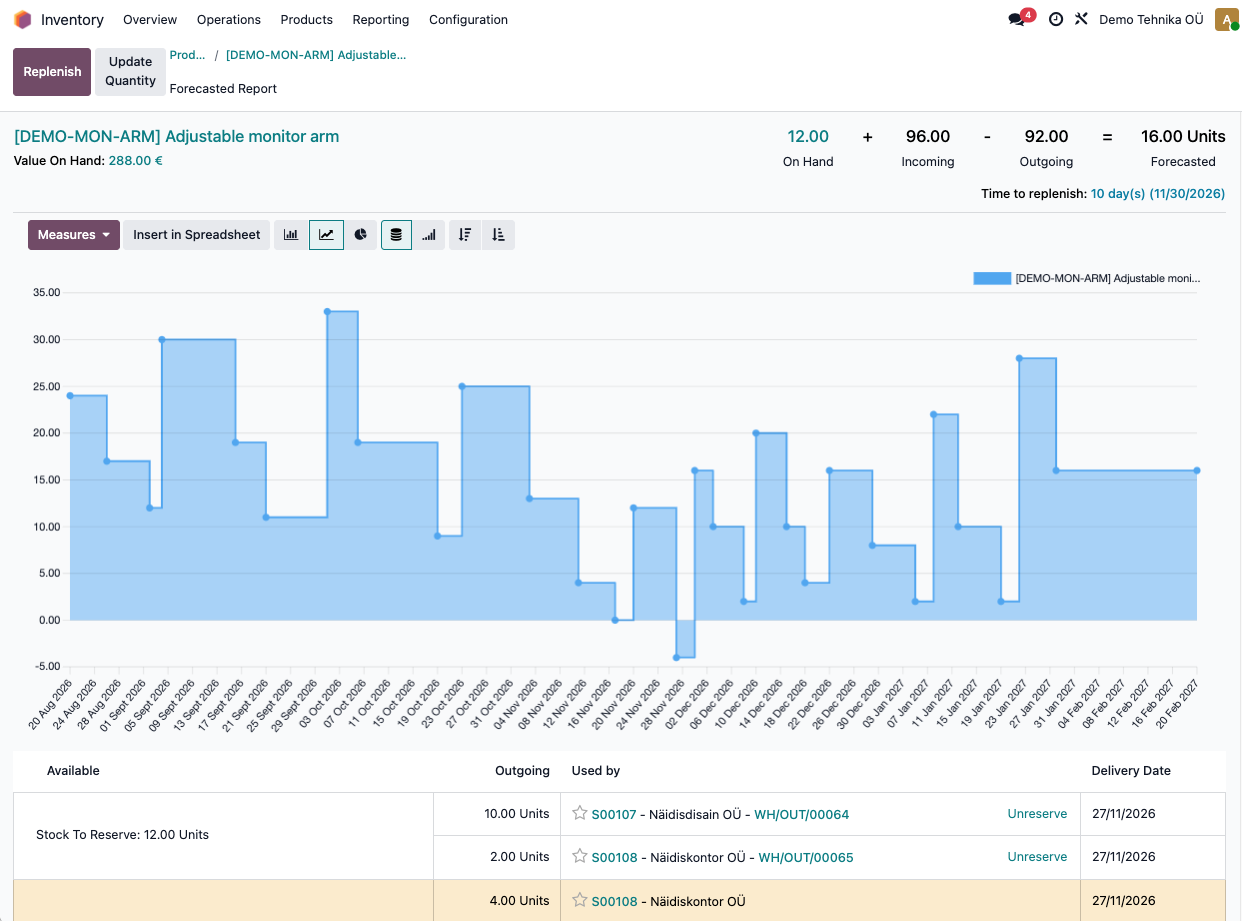
See when stock will run out
Use the forecast to see when planned deliveries to customers and incoming shipments will change the stock available.
Reorder the quantity you need
Set a reorder point and a target stock level. This helps you keep popular items available and avoid overordering.
Use blanket orders
Agree prices and quantities with a supplier, then place several purchase orders against the same agreement.
Analyse purchases by supplier
Compare the quantities you buy and how much you spend by supplier, product or period.
Find stock by warehouse and shelf
Check quantities in the central warehouse, in a shop or on a particular shelf, and record transfers between locations.
Receive or dispatch part of an order
Confirm the quantity received or dispatched and track the outstanding balance on a backorder.
Track lots and serial numbers
Look up the buyer of a device by its serial number or check the expiry date of a batch.
Count stock one shelf at a time
Compare the count with the recorded stock level and review past stock movements if the figures differ.
Pick several orders in one go
Warehouse staff can see which shelf to pick from and which order each item belongs to. They can pick several orders in one trip.
Write off damaged stock
Record the item, its location and the quantity written off. You can trace the write-off in the stock movement history.
Start with one warehouse, purchase orders and goods receipts. As your needs grow, you can add warehouses, introduce scanners and set up replenishment rules in the same Odoo system.
If you run several warehouses, you can specify which one fulfils an order and when to bring stock in from another site. Picking, packing and dispatch can each have their own step, so the warehouse team can see which orders are waiting to be picked and which are ready to go.
How do you order and receive goods?
The buyer decides what to order and how much. Warehouse staff check the delivery against the purchase order and record what has arrived. The buyer can then see what the supplier still needs to deliver.
1
The buyer reviews replenishment suggestions
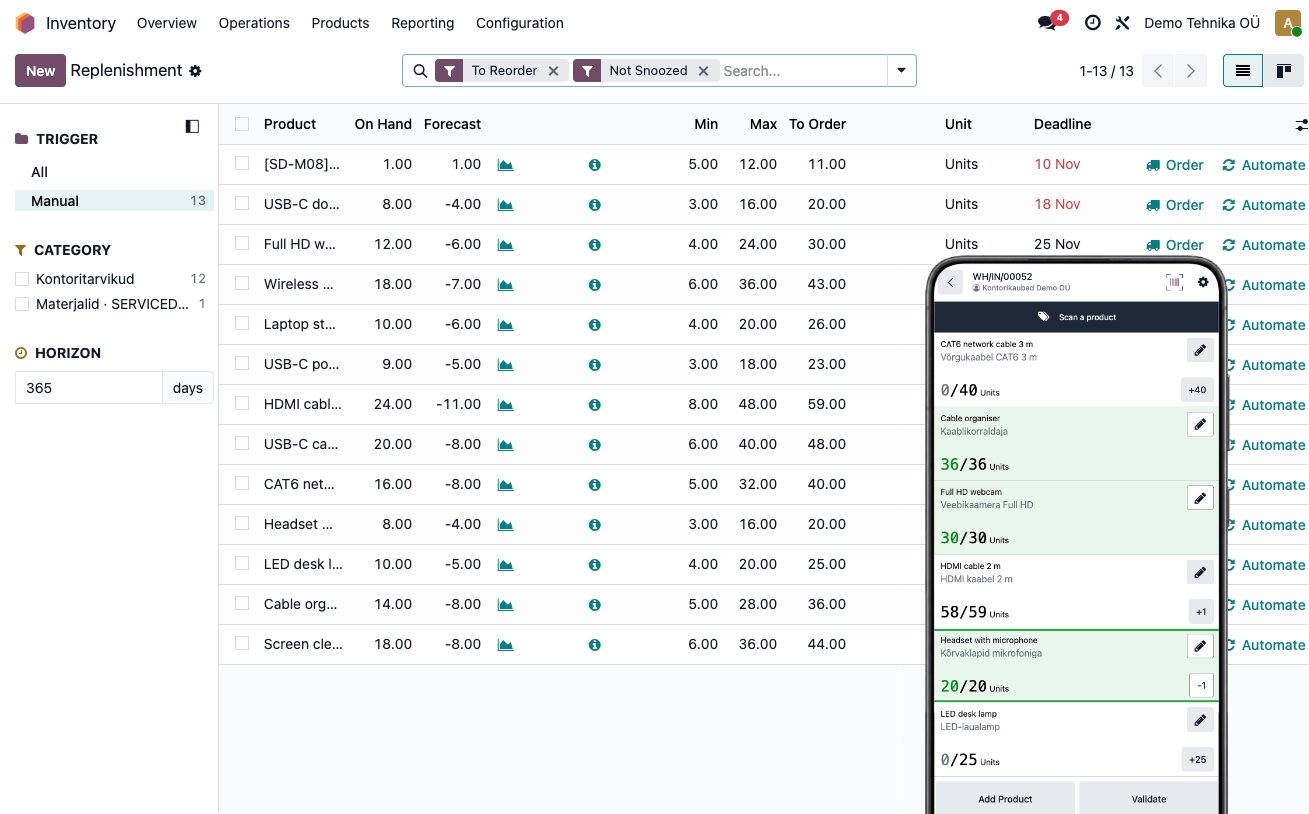
The replenishment view shows the current stock, forecast stock and suggested order quantity for each product.
2
Odoo creates a request for quotation
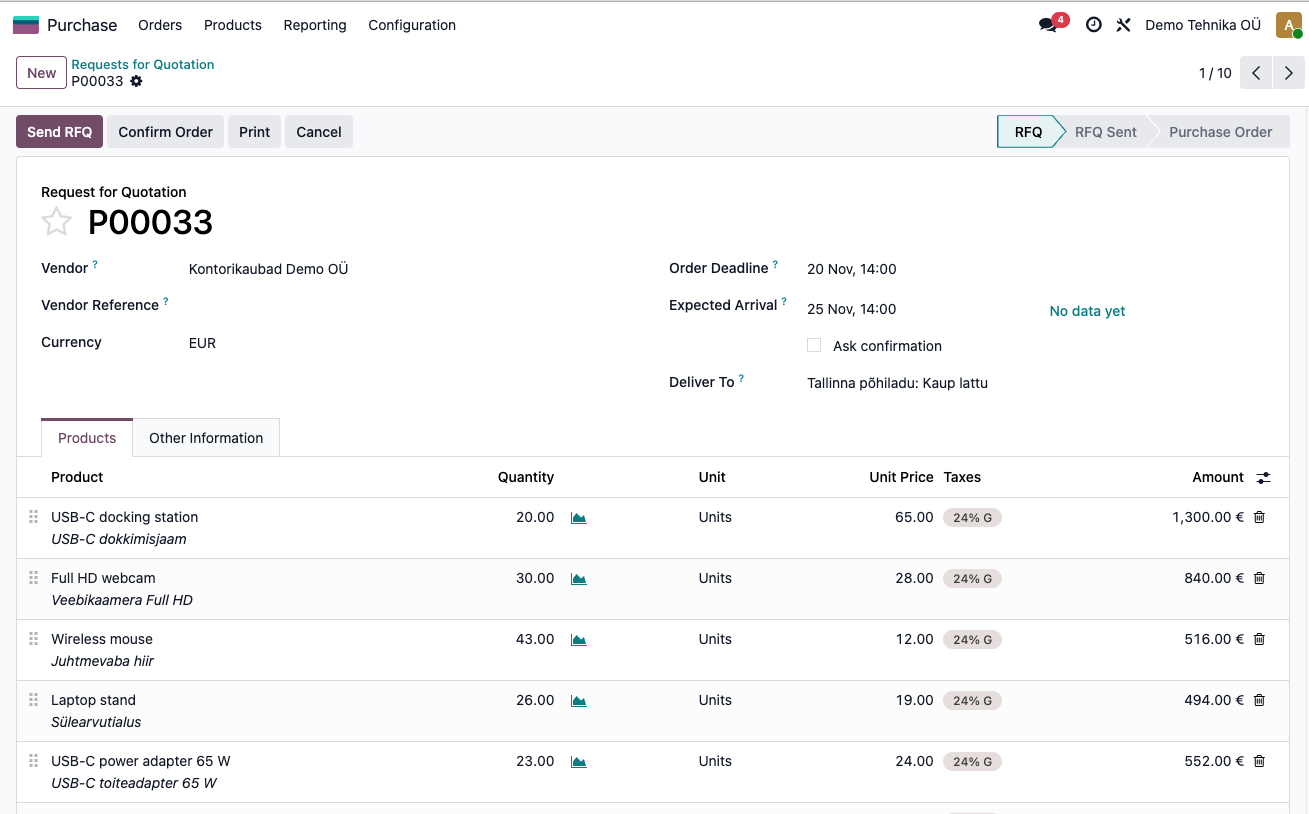
The buyer selects the items to replenish. Odoo groups items from the same supplier into a single request for quotation.
3
The buyer confirms the order
The buyer checks quantities, prices and the expected arrival date. If the terms are right, they confirm the purchase order.
4
The warehouse receives the goods
Warehouse staff scan the products in the Odoo Enterprise Barcode app and check the quantities before confirming receipt.
Replenishment and goods receipt
Request for quotation before order confirmation
How does your warehouse connect with the rest of your business?
When a customer orders from your online shop, warehouse staff can see what to pick in Odoo. Stock levels update when the team confirms a dispatch or receives a delivery. Your online shop, point of sale and sales team can all work from the same stock figures.
Sales and customer service
Before sending a quotation, check whether the goods are available or whether the order depends on the next delivery.
Online shop and physical shop
In Odoo, your online shop and point of sale can share the same stock records. You can also see which shop holds each item.
Inventory and accounting
Track quantities and stock movements in Odoo. If you keep your accounts in another system, your accountant can use Odoo’s inventory reports to check stock values and the cost of goods sold. We can discuss any need for automatic data exchange separately.
Why choose Esrap for Odoo purchasing and inventory?
You can start with a single warehouse. For more complex operations, we work with your team to trace how goods move from receipt to dispatch.
Start with one warehouse and expand as needed
We set up one warehouse alongside your sales, point of sale or online shop solution. If you open another shop or start tracking shelf locations, we can help you extend your warehouse operations in the same system.
Help with data migration
We review your product codes, suppliers and opening balances. Using a sample file, we agree which data you will enter and which Esrap will import.
One partner from purchase to dispatch
Esrap helps you connect supplier orders, goods receipts and customer order fulfilment. Whether an order comes through your point of sale or online shop, we can test the whole process with you.
Scanners for everyday warehouse work
We review how your team works, the devices you already use and your Odoo edition to find a suitable scanning solution for receiving and picking.
Pricing
Choose your Odoo edition and compare a basic single-warehouse setup with an implementation tailored to your business.
Basic setup for one warehouse
Included in your package
Covered by the hosting for your main solution, with no separate hosting fee.
When you choose an Odoo sales, point of sale or online shop solution from Esrap, we can also set up purchasing and one warehouse in the same system at your request. This setup is included in the price of your chosen solution.
Explore related solutions- Basic setup for one warehouse
- Purchase orders and goods receipts
- Dispatch and stock tracking
One-off implementation
Price on request
€45 per month + VAT
We agree which warehouses, locations and workflow steps you need, then quote for the implementation.
Discuss your warehouse operations- Warehouses, zones, shelf locations and stock transfers between them
- Separate steps for receiving, picking and packing
- Picking several orders in one trip through the warehouse
- Scanning products and shelf locations during receipt, picking or stocktaking
Odoo Community does not include the official Barcode app. To use scanners, you can choose a suitable add-on or move to Odoo Enterprise. If we add purchasing and inventory to an existing Odoo system hosted by Esrap, your current hosting continues.
Basic setup for one warehouse
Included in your package
Covered by the hosting for your main solution, with no separate hosting fee.
€22.90 per user per month + VAT
€27.90 *
When you choose an Odoo sales, point of sale or online shop solution from Esrap, we can also set up purchasing and one warehouse in the same system at your request. This setup is included in the price of your chosen solution.
Explore related solutions- Basic setup for one warehouse
- Purchase orders and goods receipts
- Dispatch and stock tracking
One-off implementation
Price on request
€45 per month + VAT
€22.90 per user per month + VAT
€27.90 *
We agree which warehouses, locations and workflow steps you need, then quote for the implementation.
Discuss your warehouse operations- Warehouses, zones, shelf locations and stock transfers between them
- Separate steps for receiving, picking and packing
- Picking several orders in one trip through the warehouse
- Scanning products and shelf locations during receipt, picking or stocktaking
* With annual billing, the first 12 months cost €22.90 per user per month. The standard rate of €27.90 per user per month applies after that. Prices exclude VAT.
Odoo Enterprise includes the Barcode app for receiving goods, picking orders and counting stock. If we add purchasing and inventory to an existing Odoo system hosted by Esrap, your current hosting continues. View licence pricing
Frequently asked questions
On request, we can add Odoo Purchase and Inventory to your Odoo sales, mobile POS, countertop POS or online shop solution and set up one warehouse. This suits teams that can enter their own products and opening stock balances and set up their own receiving and dispatch processes.
A more detailed warehouse implementation is usually part of a wider Odoo project. For example, if you supply several shops from a central warehouse, we agree with your team when to replenish each shop, how to pick shipments and how to receive them at their destination. Esrap configures Odoo around that workflow.
You can import data from an Excel or CSV file. Start with products and suppliers. Then choose the date on which you will start tracking stock in Odoo and enter the actual quantity of each product at each location.
If you would like help, send us a sample of your current spreadsheet or export file. We will review how to bring the data across and agree which parts your team will import and which Esrap will handle.
Odoo shows how much stock you have and how much is already reserved for other orders. For a later delivery, check the product’s stock forecast. It shows when new stock is due and when existing orders need to be dispatched.
For example, if you have 12 units in stock, customers are due to receive 16 by Friday and the next delivery arrives on Monday, the forecast shows a shortfall of four units on Friday.
Yes. You can set a minimum and a target stock level for each product. When forecast stock falls below the minimum, Odoo shows the buyer how much to reorder. The calculation takes expected receipts and planned customer deliveries into account.
For example, if your target is 30 units, your minimum is 10 and the forecast shows 6 remaining, Odoo suggests ordering 24. The buyer can adjust the quantity and create a request for quotation. For repeat purchases, you can also set Odoo to create the request automatically.
Yes. Odoo tracks quantities by warehouse and shop. For more detail, divide a warehouse into zones and shelf locations. A sales representative can then see which shop has an item in stock, and warehouse staff can see which shelf to pick it from.
When you send stock from the central warehouse to a shop, you can record both dispatch and receipt. Between those two steps, you can see which goods are still in transit.
Yes. If shelves or zones are set up as stock locations in Odoo, you can select a single location for counting. Warehouse staff count the items there and enter the actual quantities. Odoo highlights any differences from the recorded stock.
For example, if a shelf holds 10 units rather than the expected 12, you can check the product’s movement history before confirming the adjustment to see whether two units were moved to another shelf.
Yes. You can set the quantity of each product you want to keep at each shop. Odoo takes into account goods already on their way to the shop and planned dispatches.
For example, if a shop has a minimum of 10 units, a target of 20 and a forecast of 6 remaining, Odoo suggests sending 14. If the central warehouse supplies the shop, Odoo can create an internal transfer. The warehouse team sees what to pick and where to send it.
Yes. If the serial number was recorded in Odoo when the device arrived and when it was dispatched, you can look up its movement history. This shows which supplier it came from, who received it and on what date.
For example, if a customer sends you the serial number of a faulty device, you can find the exact delivery note even if they have received several devices of the same model.
If you receive 20 units and two are damaged, record 18 as saleable stock in Odoo. Move the two damaged units to a separate location, both in the warehouse and in Odoo, so they are kept out of customer orders.
If you send the damaged goods back to the supplier, record the return against the original receipt. If your business bears the loss and the goods need to be written off, record the write-off in Odoo. In both cases, the stock movement history shows what happened to those two units.
Yes. For example, if you set the threshold at €5,000, a buyer can confirm orders below that amount. Orders totalling €5,000 or more wait for the purchasing manager’s approval in Odoo.
The purchasing manager can review the supplier, quantities and prices before approving the order. Once confirmed, the purchase order can be sent to the supplier.